Entered the Wrong Personalization After Ordering? What to Do
If personalization is wrong after ordering, compare the saved summary, state the exact field and requested correction, and contact Amorieva promptly.
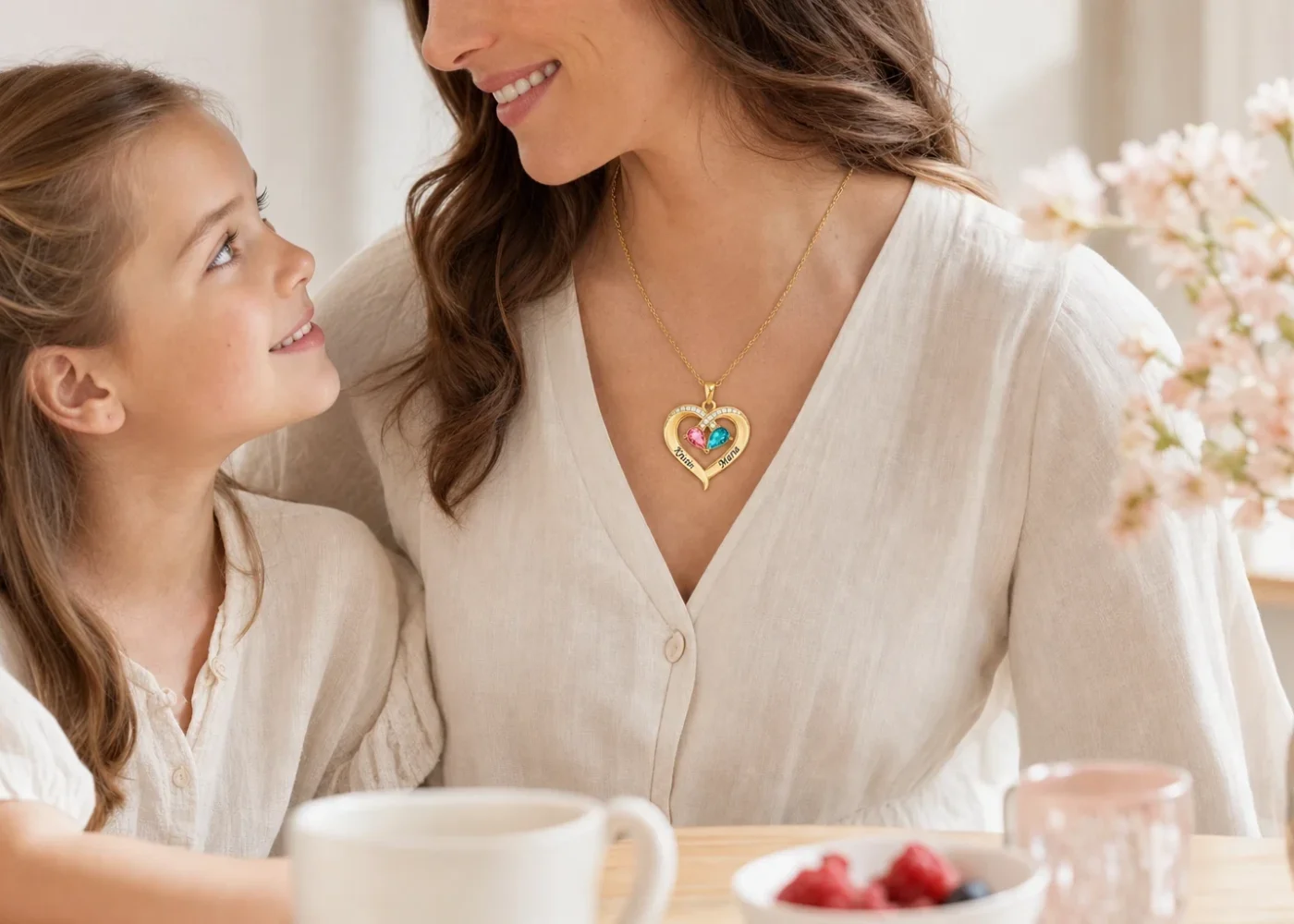
If you notice wrong personalization after an order, compare your saved order record with the intended details immediately. Identify one exact field—such as Name 2, Month 1, tone, size, or heart style—and write the current submitted value beside the requested correction. Then contact Amorieva through the current support route promptly. A change may not be possible after made-to-order preparation begins, so clarity and speed both matter.
Verify that the order record is actually wrong
Open the confirmation or final summary available to you. Do not rely only on memory or the product image. Read the product title, quantity, personalization fields, tone, size, format, and any note exactly as recorded.
Compare that summary with the trusted source used for the intended name or month. A color thumbnail may look surprising without the text label being incorrect. Likewise, a sample product photo may show a different tone or name because it is not a preview of your configured item.
If the saved summary matches your intended data but you are second-guessing a style preference, describe that separately from a factual entry error. Support needs to know whether the request corrects a mistake or asks to revise a valid choice.
Check the cart quantity and product title before writing. A message about “the necklace” can be unclear when one order contains two personalized items. Identify the affected line item through its product name and personalization summary so the requested edit cannot be applied mentally to the wrong piece.
Write one correction table
Use a compact structure that removes ambiguity:
- Order reference and product name.
- Field label exactly as shown.
- Submitted value currently in the order.
- Requested value, spelled exactly as intended.
- Source used to confirm the correction.
- Other fields that should remain unchanged.
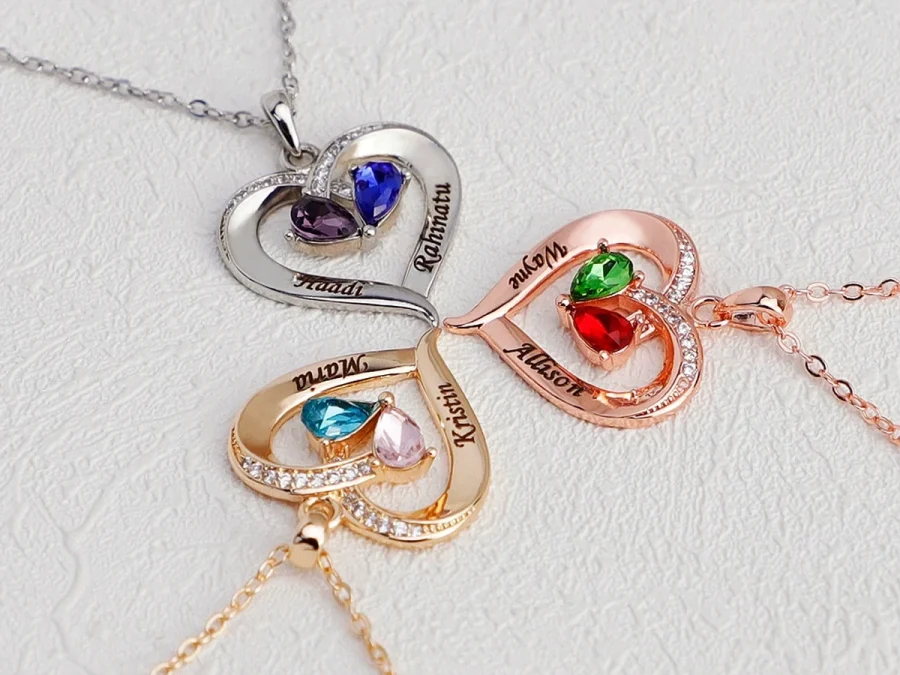
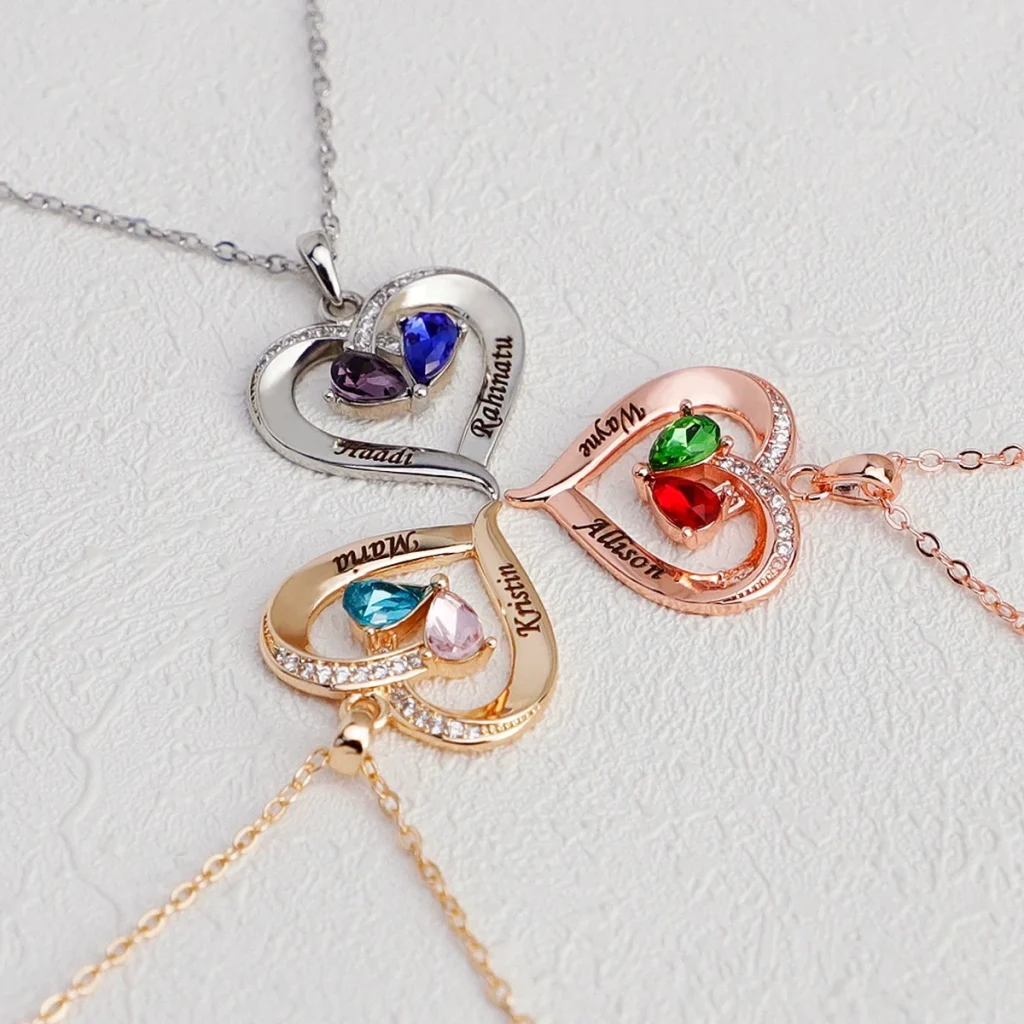
For example, the Two-Tone Teardrop Story Necklace has two names, two selected months, a plated tone, and either a crystal-set or smooth engraved heart accent. “Please change the necklace” is too broad. “Name 2 currently reads Mara; requested Name 2 is Maria; all other fields unchanged” is checkable.
Contact support without submitting competing versions
Use the current route listed in the Amorieva customer FAQ. Put the order reference near the beginning and use one message thread when possible. Sending multiple versions through several channels can make it unclear which correction is final.
If you must update the request, state that the new message replaces the prior version and repeat the complete final correction table. Do not send only “ignore my last email,” because that leaves support without a self-contained instruction.
Ask whether the change can still be reviewed, but do not assume acceptance. Personalized pieces are prepared from confirmed details, and the stage of preparation affects what may be possible. The current policy information is the appropriate reference for order changes and problem-order handling.
A concise subject line can include the order reference and “personalization correction request.” In the first sentence, state that you discovered an error in the submitted record. Then paste the correction table. Keep the explanation of how the mistake occurred to one short sentence unless support asks for more context.
Prevent a correction from creating another error
Before sending, have a second person read the requested value from its source and compare it with your message. Check capitalization, punctuation, accents, month label, tone name, size, and style. If the correction involves a name-month pair, verify both fields so changing one does not leave a mismatch.
Save a copy of the communication and the original order summary. If support confirms an update, keep that confirmation with the first record. Do not edit your local screenshot in a way that makes it look like the original submission contained the corrected value.
Review the confirmed update just as carefully as the original order. A corrected name with an unchanged, now-mismatched month is still an inaccurate pair. Read all positions from the latest accepted record and mark the version with a date so the family does not later rely on an older screenshot.
The personalization process overview can help you separate product fields from a general note. A correction should use the same labels as the live configuration rather than inventing a new design instruction.
Common questions
Can I change an engraving after the order is placed?
Contact support promptly with the order reference, exact submitted value, and exact requested value. Whether a change is possible depends on the order’s preparation stage and current policy.
What if I chose the wrong birthstone color?
Check the selected month text first. If the month field itself is wrong, identify its position and requested month by name. Do not describe the correction only through an approximate screen color.
Should I place a second order immediately?
A duplicate order can create another problem. First provide the original order reference and ask for current guidance. If a new order is needed, follow the instructions you receive and review every field again.
Make the request precise enough to act on
The best next step is not a long explanation of how the error happened. It is a verified, self-contained correction tied to one order and one field. Check the record, write submitted and requested values side by side, send one clear message promptly, and preserve every confirmation. That method cannot promise a change, but it gives the request the clearest possible form.