Reordering Personalized Jewelry? Recheck Every Current Field
Before reordering personalized jewelry, compare every current field with the earlier confirmation and reverify names, piece count, tone, policy, and timing.
When reordering personalized jewelry, use the earlier confirmation as a reference rather than a reusable template. Open the current product page, compare every field, and reverify names, order, piece count, format, size, tone, notes, policy, and timing. Product options and household details can change, so a faithful repeat order requires a new review.
Freeze the old order as historical evidence
Save the prior confirmation without editing it. Label it with the original order date and product. This record shows what was submitted then; changing it to match today’s plan would erase the comparison you need.
Create a second worksheet labeled “current reorder.” Copy only after each value is confirmed. Use columns for old value, current field, new value, and reviewer. A blank difference is meaningful only after the field is checked.
Add a status to every row: same and verified, changed, removed, new, or no longer offered. This prevents an empty cell from meaning both “not checked” and “not applicable.” Date the review so another planner knows which version of the product page was used.
Compare the product page before the personalization
Confirm the title, current status, materials wording, format, capacity, and available options. Do not assume a similar image means the same product configuration. An old screenshot can miss new prompts or show a choice that is no longer available.
Review current product images for structure, but treat the live fields as the order authority. If a required old option is absent, pause and ask rather than hiding the request in a Special Note.
Check whether the old product URL redirects, whether the title has changed, and whether the current page still shows the exact piece count. A familiar saved photograph can outlive the sellable configuration. Use only active current pages for the new order.
Rebuild a puzzle-necklace order from zero
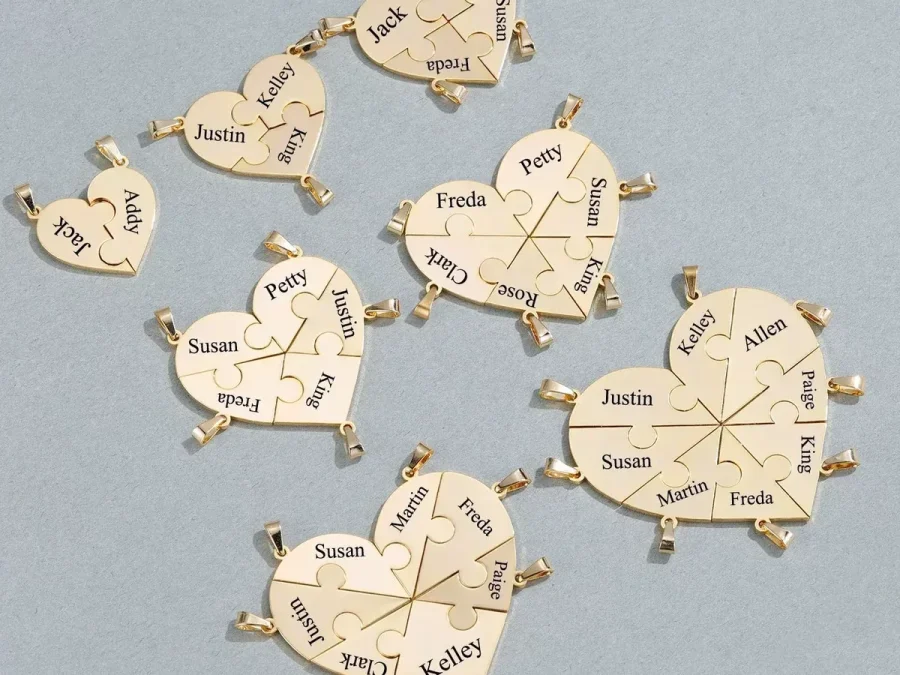
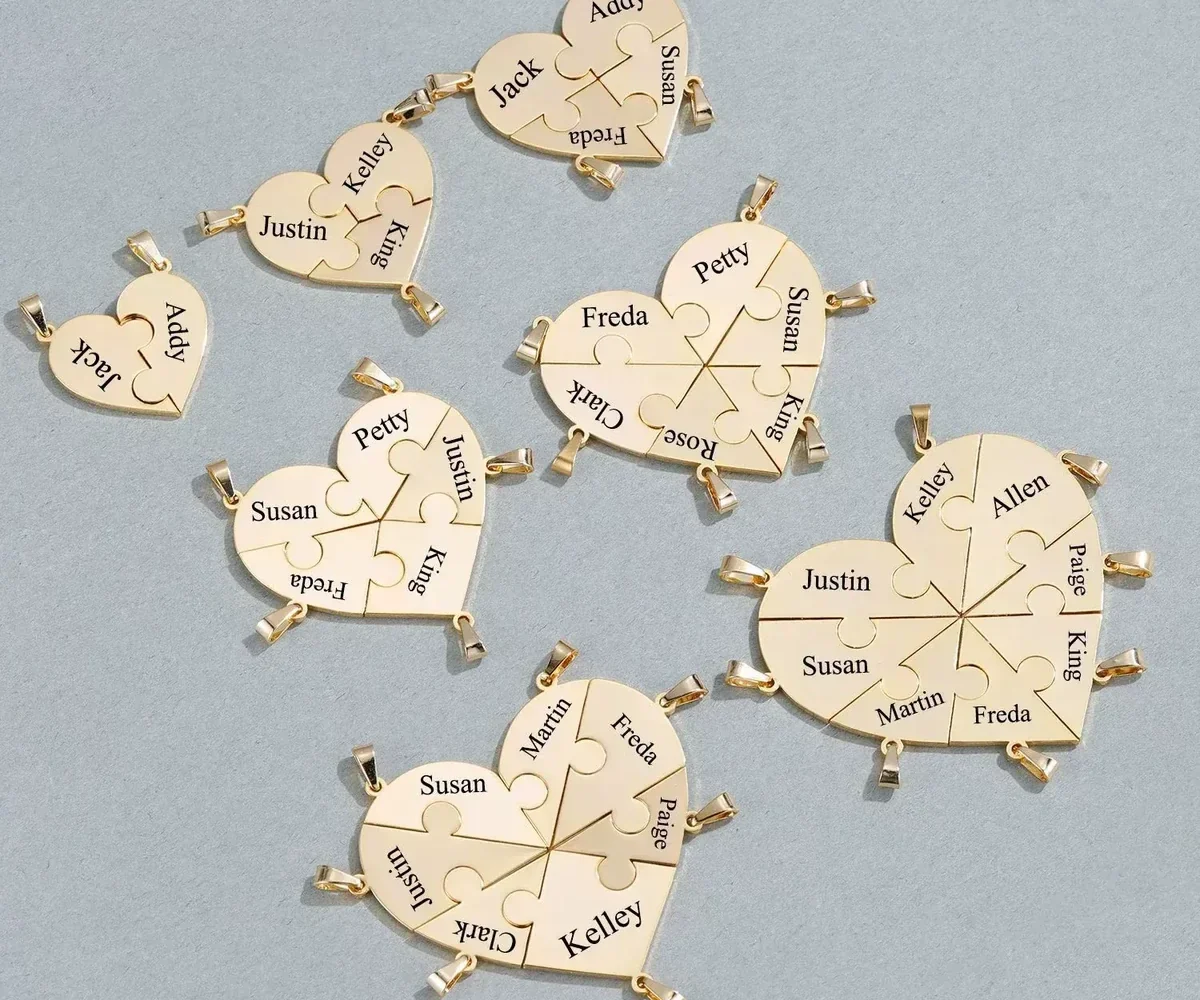
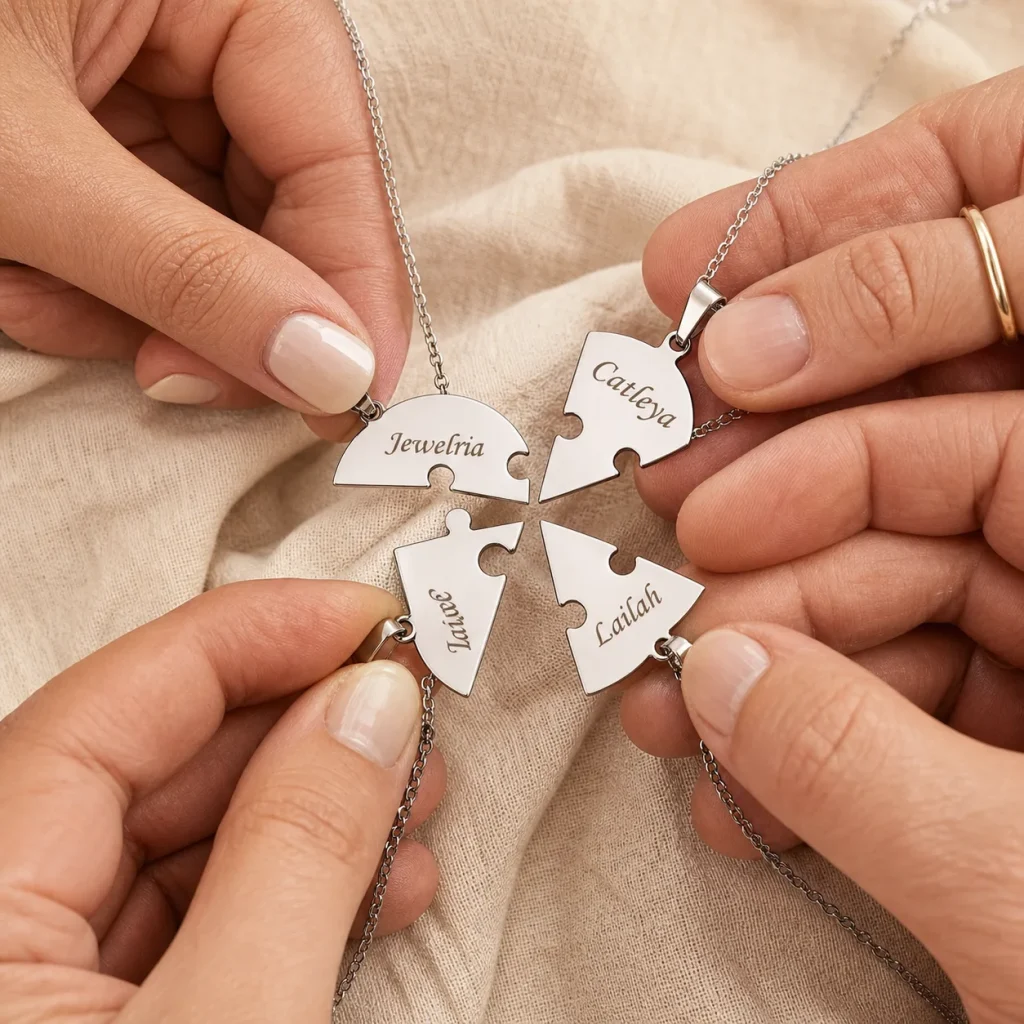
The Together Heart Puzzle Necklace currently supports two or three interlocking heart pieces, one engraved name per piece, and three finish tones on a plated stainless-steel design. It has no birthstone field.
For a reorder, choose two or three pieces from the current selector, then re-enter each approved name. Confirm whether the same people still want the same display names and whether the same order remains meaningful. Do not copy a birth month from another product into this name-only design.
Compare the current two- and three-piece silhouettes. A reorder for an expanded group is a new configuration, not a minor update to the earlier order.
Suppose the first order used two names and the new brief uses three. Reverify all three names, choose the three-piece selector, and review the larger complete outline. Do not copy the two original rows and append a third without confirming whether the intended order has changed.
Recheck personal facts, not just fields
Names, family roles, consent, and preferred finish can change. Ask whether a nickname, surname, diacritic, or person list is still approved. A repeat gift should not freeze an earlier identity choice without confirmation.
Use the Amorieva personalization process for the new worksheet. Assign one proofreader who compares the completed form with current approvals rather than with memory.
Pay special attention to autofill and browser history. A field may repopulate an old address or engraving automatically. Read every visible value after the page is complete, then save the new submitted record separately from the old one.
Refresh policies and timing
Review the current shipping and personalized-order policy when the reorder is ready. Address coverage, estimates, and return conditions are time-sensitive. Do not quote an earlier order’s timing as a promise for the new one.
Check the destination again. A saved address may be outdated, and a surprise gift can be spoiled or lost through automatic reuse. Use the current FAQ for support questions before submission.
After ordering, compare the new confirmation with the “current reorder” worksheet. If a mismatch appears, contact support promptly without editing either record. The two preserved versions explain exactly what was planned and submitted.
Common questions
Can I duplicate an old confirmation exactly?
Only after every value is checked against the current product and current family approvals. Treat “same” as a verified result, not the starting assumption.
What if an old option no longer appears?
Do not substitute or request it silently. Ask whether it remains supported, choose from current options, or select another design that fits the new brief.
Should I reuse the old Special Note?
Read it from scratch. Remove outdated instructions and copy only language that still clarifies a supported current choice without contradicting required fields.
Repeat the meaning, not the data-entry shortcut
A reorder succeeds when it preserves the intended relationship under today’s facts and fields. Keep the old record unchanged, rebuild the current configuration, and verify every repeated value. That process takes longer than clicking “again,” but it prevents history from silently becoming an incorrect present order.
Archive both confirmations with different dates and descriptive names. If another repeat is planned later, begin from the newest live product page again rather than treating the second order as a permanent master copy.
This keeps every reorder independently auditable and prevents a chain of copied, unverified assumptions.